
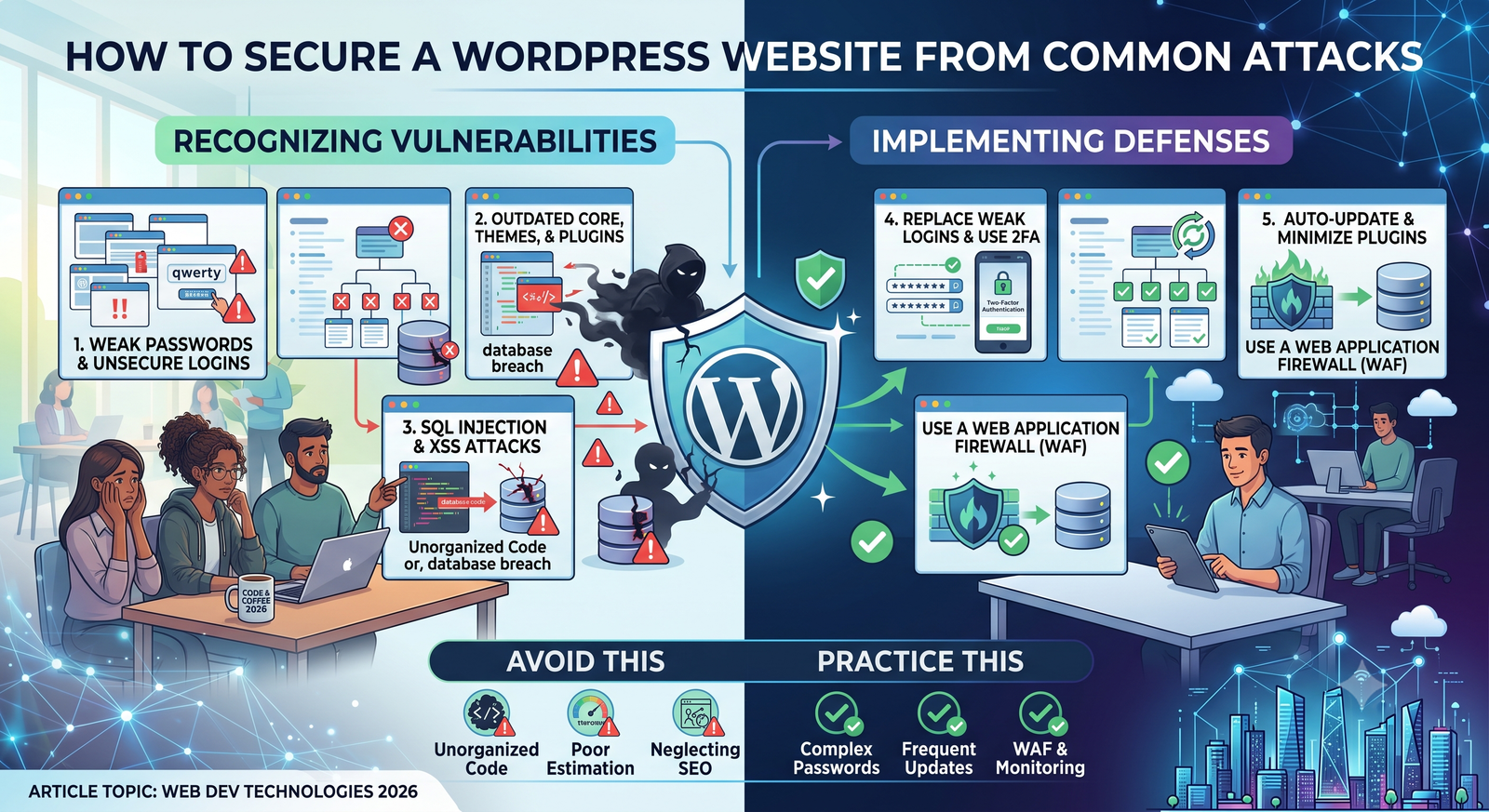
A WordPress website can be a valuable business asset. It may contain customer information, contact forms, payment integrations, private content, administrator accounts, and years of published work.
That also makes website security something you can’t afford to treat as an afterthought.
The good news is that securing a WordPress website doesn’t necessarily require advanced cybersecurity knowledge. Many successful attacks take advantage of relatively basic weaknesses: outdated software, weak passwords, vulnerable plugins, poorly configured hosting, excessive user permissions, or missing backups.
Good WordPress security is therefore less about finding one magical security setting and more about building several layers of protection.
You want to make it difficult for attackers to gain access, limit what they can do if they get in, detect suspicious activity quickly, and have a reliable way to recover if something goes wrong.
This guide explains practical ways to secure a WordPress website and reduce exposure to common attacks.
Why WordPress Security Matters
WordPress itself is widely used, but the security of a WordPress website depends on much more than the WordPress core software.
A typical website might include:
WordPress Core
    +
Theme
    +
Plugins
    +
Hosting
    +
Database
    +
Administrator Accounts
    +
Third-Party Services
Every component can introduce security considerations.
For example, an outdated plugin may contain a vulnerability. A compromised administrator account could give an attacker access to the dashboard. Poor hosting configuration could expose files or services that shouldn’t be publicly accessible.
Security is therefore a complete system rather than a single plugin or setting.
Keep WordPress Updated
One of the simplest WordPress security tips is also one of the most important: keep your software updated.
This includes:
- WordPress core
- Plugins
- Themes
- PHP
- Server software
- Security-related dependencies where applicable
Updates can contain security fixes as well as new features and bug fixes.
An outdated component doesn’t automatically mean your website has been hacked, but known vulnerabilities can make an old version a more attractive target.
Before updating, especially on an important production site, make sure you have a recent backup and consider testing significant updates in a staging environment.
Don’t Ignore Small Plugins
Website owners sometimes pay attention to their main plugins while forgetting smaller ones that were installed months or years ago.
Every active plugin increases the amount of software that needs to be maintained.
If you no longer use a plugin, don’t simply leave it installed indefinitely. Remove software that your website doesn’t need.
The same applies to unused themes.
Use Strong, Unique Passwords
A password is one of the first barriers protecting an administrator account.
Avoid passwords based on:
- Your company name
- Your website name
- Your birthday
- Common words
- Simple patterns
- Reused passwords
A strong password should be long, unique, and difficult to guess.
More importantly, don’t reuse your WordPress administrator password on other websites.
If another service suffers a credential leak and you reused the same password, an attacker may try those credentials against your WordPress login.
A password manager can make it easier to use unique passwords without having to memorize every one.
Enable Multi-Factor Authentication
Multi-factor authentication, commonly called MFA or 2FA, adds another layer of protection to the login process.
Instead of relying only on a password, the user may also need a second factor such as:
- An authenticator app
- A security key
- Another approved authentication method
This means that even if someone obtains the password, they may still be unable to access the account.
For administrator and other high-privilege accounts, multi-factor authentication can be particularly valuable.
If your WordPress security setup supports MFA, consider making it a requirement for administrators rather than treating it as an optional feature.
Limit Administrator Accounts
Not everyone who works on a website needs administrator access.
WordPress provides different user roles with different capabilities. Give each person only the permissions necessary to perform their job.
For example:
Administrator → Full site management
Editor        → Manage content
Author        → Manage own content
Contributor   → Create content with limitations
Subscriber    → Basic account access
The exact permissions and requirements vary by site, but the principle is simple:
Don’t give more access than someone needs.
If a contributor only needs to write articles, they probably don’t need full administrator privileges.
Reducing unnecessary privileges limits the potential damage if an account is compromised.
Protect the WordPress Login
The login page is an obvious target because attackers know where WordPress authentication normally occurs.
A website can receive automated login attempts using lists of common usernames and passwords.
Several measures can reduce this risk:
- Use strong passwords.
- Enable MFA.
- Avoid unnecessary administrator accounts.
- Implement appropriate login rate limiting.
- Monitor failed login attempts.
- Use secure hosting and HTTPS.
- Consider additional authentication controls where appropriate.
It’s important not to rely solely on hiding or changing the default login URL as your primary security measure.
A hidden login URL doesn’t replace strong authentication.
Use HTTPS
HTTPS encrypts communication between the visitor’s browser and the website.
This matters especially when users:
- Log in
- Submit forms
- Enter personal information
- Access an administrator interface
- Complete transactions
A valid TLS certificate is now a standard part of modern website deployment.
Your hosting provider or certificate service may provide HTTPS configuration, but you should verify that the entire site consistently uses HTTPS and that mixed-content problems are addressed.
HTTPS doesn’t make a WordPress website invulnerable. It protects data in transit; it doesn’t fix vulnerable plugins, compromised accounts, or insecure server configurations.
Choose Reliable WordPress Hosting
Hosting has a major role in WordPress website security.
A cheap hosting plan isn’t automatically insecure, and an expensive provider isn’t automatically secure. What matters is the quality of the infrastructure and security practices.
Look for hosting that provides appropriate:
- Server isolation
- Security updates
- Backups
- Monitoring
- Malware detection
- TLS/HTTPS support
- Access controls
- PHP version management
- Recovery options
Managed WordPress hosting can reduce some operational responsibilities, but website owners still need to maintain their WordPress installation, plugins, themes, accounts, and configurations.
Security is shared between the hosting environment and the site owner.
Install Only Trusted Plugins and Themes
Plugins are one of the main reasons WordPress is so flexible.
They allow you to add features without building everything yourself.
But every plugin is another piece of software that needs to be maintained.
Before installing a plugin, consider:
- Is it actively maintained?
- Is it compatible with your WordPress version?
- Does it come from a trustworthy source?
- Does it have a reasonable update history?
- Does the project provide useful documentation?
- Do you actually need it?
Avoid downloading plugins or themes from questionable sources, particularly modified or “nulled” versions.
Pirated themes and plugins can contain malicious code, hidden administrator accounts, backdoors, or other unwanted functionality.
Saving money on a premium plugin is not worth compromising the entire website.
Remove Unused Plugins and Themes
Deactivating a plugin isn’t always the same as removing it.
If you no longer need a plugin or theme, consider deleting it after confirming that the website doesn’t depend on it.
Unused software increases maintenance overhead and can become a problem if it is forgotten for months or years.
A simple maintenance routine can include checking the Plugins and Themes sections periodically and removing anything that isn’t required.
Keeping your WordPress installation lean also makes it easier to understand what software is actually running on your site.
Protect Against WordPress Malware
WordPress malware can take many forms.
A compromised site may:
- Redirect visitors to other websites
- Inject unwanted advertisements
- Create hidden administrator accounts
- Modify website content
- Add malicious scripts
- Send spam
- Attempt to infect visitors
- Steal sensitive information
- Consume server resources
Malware isn’t always obvious.
A website can appear normal to the owner while behaving differently for search engines, specific visitors, or users arriving from particular locations.
This is one reason monitoring and regular scanning can be useful.
If you suspect malware, don’t simply delete a few suspicious files and assume the problem is solved. Attackers may have added multiple persistence mechanisms.
A proper incident response should identify the source of the compromise, remove malicious changes, update vulnerable software, reset affected credentials, and restore from a known-clean backup when appropriate.
Use a WordPress Security Plugin Carefully
Security plugins can provide useful features such as:
- Malware scanning
- Firewall functionality
- Login protection
- File-change monitoring
- Security notifications
- IP blocking
- Two-factor authentication
- Audit logging
However, a security plugin should not be treated as a complete security strategy.
Installing several security plugins can also create conflicts or unnecessary complexity.
Choose tools based on your site’s actual needs and understand what each one does.
A security plugin can supplement good practices; it cannot compensate for an outdated website, weak passwords, poor hosting, or missing backups.
Create Regular Backups
Backups are one of the most important parts of a secure WordPress website.
Security controls reduce the chance of a compromise. Backups help you recover if one happens.
Your backups should ideally include:
- WordPress files
- Themes
- Plugins
- Uploaded media
- Database
- Important configuration information
A backup that cannot be restored isn’t particularly useful.
Test your recovery process periodically.
For example, if your site is compromised on a Friday night, you don’t want to discover on Saturday morning that your “backup” was incomplete or corrupted.
Follow the 3-2-1 Principle
A commonly used backup approach is the 3-2-1 principle:
- Keep multiple copies of important data.
- Use more than one type of storage.
- Keep at least one copy separate from the primary environment.
The exact implementation depends on your hosting and backup tools, but the underlying idea is redundancy.
Don’t keep your only backup on the same server as your website.
If an attacker compromises the server or the server fails, you could lose both the site and the backup.
Keep Backups Separate From the Website
This deserves special attention.
Suppose your WordPress website is compromised and the attacker gains access to the hosting account.
If your only backup is stored in the same account, the attacker may be able to modify or delete it.
Keeping backups in a separate location can provide another layer of protection.
For important websites, consider maintaining multiple backup points so that you can choose an appropriate clean version rather than automatically restoring the most recent copy.
Protect Your WordPress Database
The WordPress database contains important information such as:
- User accounts
- Site settings
- Posts
- Pages
- Comments
- Plugin data
- Configuration information
Use a database account with only the permissions required by the application.
Don’t expose database services directly to the public internet unless there is a specific, carefully secured reason to do so.
Database credentials should also be stored securely rather than hard-coded into publicly accessible files.
WordPress uses database credentials in its configuration, so protecting configuration files and the hosting environment is important.
Use Secure File Permissions
File permissions control who can read, write, and execute files on the server.
Incorrect permissions can create opportunities for unauthorized modification.
The exact permissions appropriate for a WordPress installation depend on the hosting environment, server configuration, ownership model, and deployment process.
Avoid blindly copying permission settings from random tutorials.
Instead, use the principle of least privilege: files and directories should have only the access required for the application and deployment process to function.
If you’re unsure, ask your hosting provider or system administrator to review the configuration.
Protect Sensitive Configuration Files
WordPress contains configuration information that should not be publicly exposed.
The wp-config.php file is particularly important because it contains database connection information and other configuration settings.
Your server should be configured so visitors cannot download PHP source code or access sensitive configuration files as plain text.
Don’t place passwords, API credentials, or private keys into publicly accessible files unless the architecture specifically requires it and those files are properly protected.
If credentials are exposed, rotate them.
Keep PHP and Server Software Updated
WordPress doesn’t operate in isolation.
Your website also depends on the underlying server environment.
That may include:
- PHP
- Web server software
- Operating system
- Database server
- Server extensions
- Hosting control panel
Outdated server software can introduce vulnerabilities even if WordPress itself is fully updated.
If your hosting provider manages the server, confirm that they have a process for security updates.
If you manage your own server, server maintenance becomes part of your responsibility.
Prevent Unnecessary Code Execution
Attackers may attempt to upload malicious files and execute them through vulnerable functionality.
A properly configured server can restrict code execution in directories where users should only be able to upload content.
This requires careful server configuration because the correct approach depends on your hosting environment.
It’s another reason why security hardening shouldn’t consist of blindly copying configuration snippets from the internet.
Test changes before applying them to production.
Protect Forms and User Input
Contact forms, registration forms, search fields, comment systems, and other input mechanisms can become attack surfaces.
Applications should validate and sanitize input appropriately.
Common concerns include:
- SQL injection
- Cross-site scripting (XSS)
- Cross-site request forgery (CSRF)
- Malicious file uploads
- Spam submissions
WordPress and its plugins provide APIs and security mechanisms for developers, but plugin and theme developers still need to use them correctly.
As a site owner, keeping plugins updated and choosing reputable software reduces your exposure to vulnerabilities caused by poorly implemented functionality.
Be Careful With File Uploads
File uploads deserve special attention.
If users can upload images, documents, or other files, the application needs to validate what is being uploaded and how those files are stored.
Never assume that a file is safe simply because its filename ends with an expected extension.
A secure upload system should consider:
- File type validation
- File size limits
- Storage location
- Filename handling
- Access controls
- Whether uploaded files can be executed
If your website doesn’t need file uploads, disabling unnecessary upload functionality can reduce the attack surface.
Protect WordPress From Common Vulnerabilities
WordPress vulnerabilities can exist in core software, plugins, themes, hosting environments, or custom code.
Common vulnerability categories include:
Cross-Site Scripting
XSS can occur when untrusted input is improperly handled and ends up being interpreted as executable code in a visitor’s browser.
SQL Injection
SQL injection involves manipulating database queries through improperly handled input.
Modern WordPress development provides APIs that can help developers avoid these problems, but custom code and poorly developed plugins can still introduce risk.
Authentication Vulnerabilities
Weak login systems, stolen credentials, or flawed authentication logic can allow unauthorized access.
File Inclusion and Upload Vulnerabilities
Improper handling of files can sometimes allow attackers to access or execute content they shouldn’t.
The practical defense is layered:
Updates
+
Secure credentials
+
Least privilege
+
Trusted plugins
+
Input validation
+
Firewall/monitoring
+
Backups
No single control eliminates every vulnerability.
Monitor Your Website
Security isn’t something you configure once and forget.
Regular monitoring can help you identify suspicious activity.
Depending on the site, useful signals might include:
- Unexpected administrator accounts
- Unknown plugin installations
- Modified files
- Sudden redirects
- Unexpected login activity
- New scripts
- Unusual server traffic
- Unexpected changes to content
- Security alerts
For business-critical websites, centralized logging and monitoring can provide greater visibility than relying solely on the WordPress dashboard.
What to Do If Your WordPress Website Is Hacked
If you discover that your website has been compromised, avoid making random changes without understanding what happened.
Start by limiting further damage.
A general response process can include:
1. Confirm the compromise
Look for unauthorized accounts, unexpected files, redirects, altered content, or other indicators.
2. Restrict access
Depending on the situation, you may need to temporarily put the site into maintenance mode or restrict access while investigating.
3. Preserve evidence
If the site is business-critical or the incident is serious, preserve relevant logs and other information before making extensive changes.
4. Identify the entry point
Determine whether the compromise involved a vulnerable plugin, stolen credentials, server issue, or another weakness.
5. Remove malicious code
Remove unauthorized modifications and persistence mechanisms.
6. Update everything
Patch WordPress, plugins, themes, PHP, and other affected software.
7. Reset credentials
Change passwords and revoke or rotate affected credentials, including administrator, hosting, database, FTP/SFTP, API, and other relevant credentials.
8. Restore if necessary
If you have a known-clean backup, restoring may be safer than trying to manually clean a heavily compromised installation.
9. Monitor afterward
Continue monitoring the site to ensure the attacker no longer has access.
For serious compromises, particularly sites handling financial or personal information, professional incident-response assistance may be appropriate.
WordPress Security Checklist
Use this checklist as a starting point for improving your WordPress website security:
- Keep WordPress core updated.
- Keep plugins and themes updated.
- Remove unused plugins and themes.
- Use strong, unique passwords.
- Enable multi-factor authentication.
- Limit administrator accounts.
- Use HTTPS.
- Choose reputable hosting.
- Install plugins only from trusted sources.
- Maintain regular backups.
- Store backups separately.
- Test backup restoration.
- Protect database credentials.
- Review file permissions.
- Keep PHP and server software updated.
- Monitor administrator activity.
- Scan for malware when appropriate.
- Protect forms and uploads.
- Review security alerts promptly.
- Have a recovery plan.
Final Thoughts
Good WordPress security isn’t about making a website impossible to attack. No internet-connected system can realistically promise that.
The goal is to reduce unnecessary exposure, make common attacks harder, detect problems quickly, and make recovery possible.
Start with the fundamentals: keep everything updated, use strong authentication, limit permissions, choose trusted plugins, use HTTPS, maintain reliable backups, and monitor the site for unexpected changes.
Then consider additional protections based on the importance and complexity of your website.
A personal blog, a small business website, and a high-traffic e-commerce platform don’t necessarily need identical security architectures. The more sensitive the data and the greater the business impact of downtime, the more seriously you should approach monitoring, access control, backups, hosting security, and incident response.
Most importantly, don’t treat a security plugin as the entire solution. WordPress hacking protection works best as a layered process involving software updates, secure accounts, responsible plugin selection, server security, monitoring, and tested recovery procedures.
A secure website isn’t simply one that hasn’t been hacked. It’s one that has been designed and maintained so that common weaknesses are addressed and the site owner is prepared to respond when something goes wrong.